Image Splitter — guide & support
Split and arrange images, join them and prepare posters on your device.
Release preparation
Android and iOS editions are being prepared. Public downloads are not yet available. The first release is free, with no advertising, in-app purchases, account or mandatory app watermark.
What you can do
- Manual cuts, reviewed automatic suggestions, pixel adjustment, crop, rotation and undo.
- Grids, carousels, ordered previews and personal presets.
- Stitching, overlap adjustment, collages and your own optional watermark.
- Multi-sheet poster PDF, batch image output, folders, Photos, sharing and ZIP.
- Local projects, automatic draft, recent work and 19 interface languages.
Actual app screens
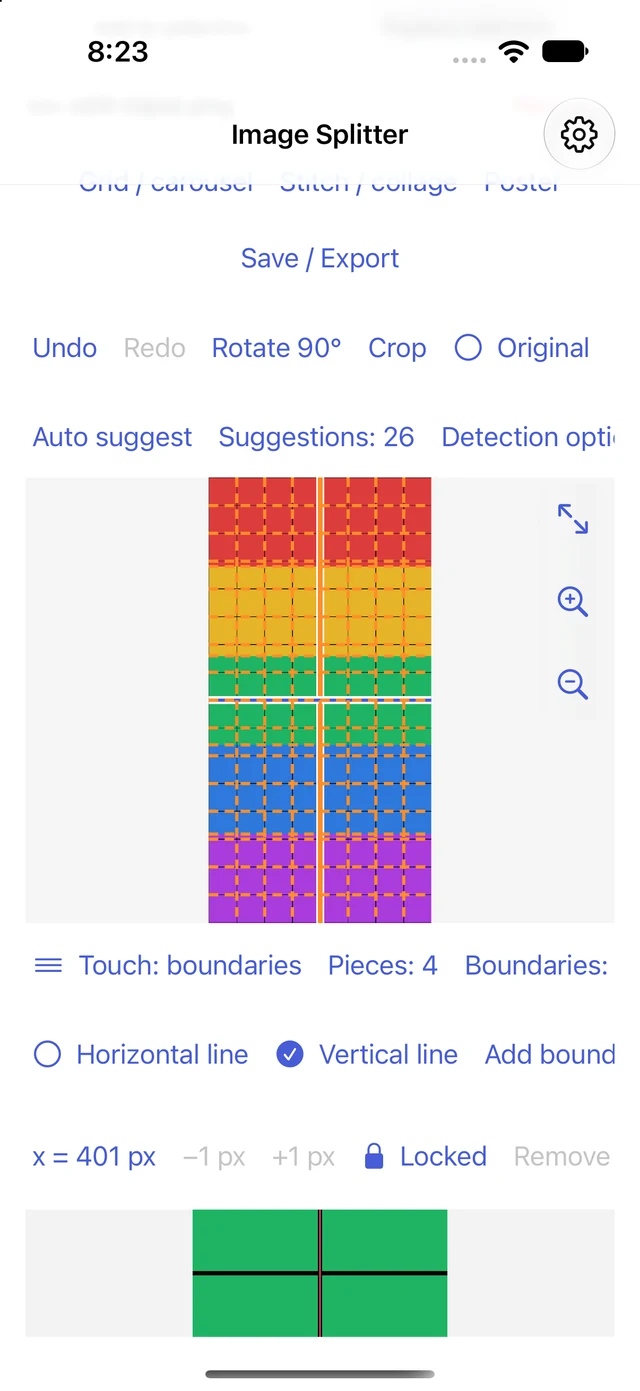
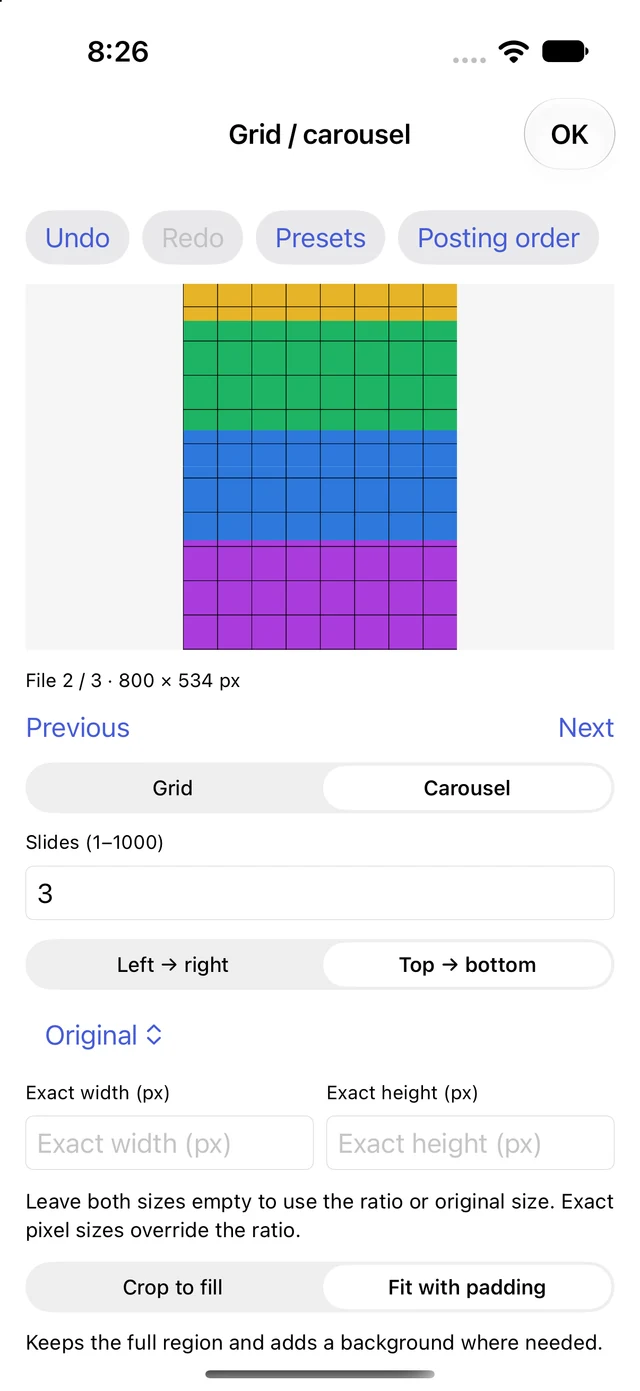
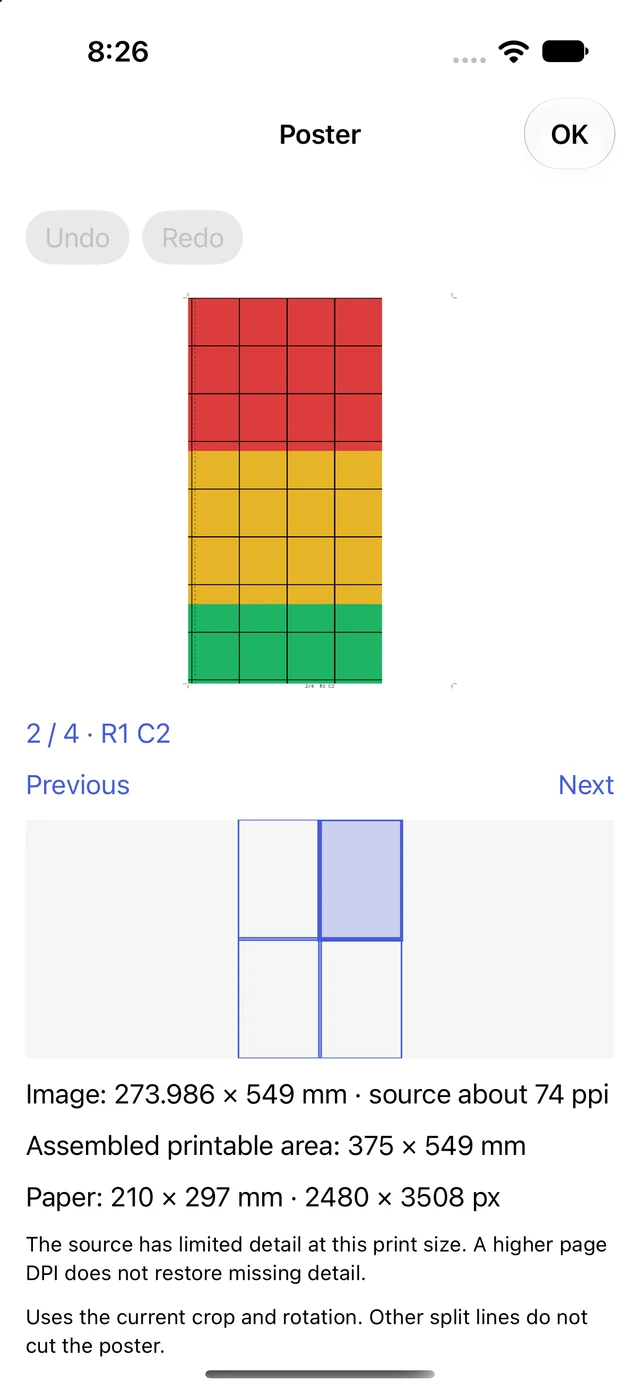
Actual iPhone 17 / iOS 27.0 simulator screens, preparation build 1.0.0 (1). Android appearance differs. The poster is an on-screen preview, not a physical print.
Getting started
- Import from Photos, Files or the system share sheet.
- Choose split, grid, carousel, stitch, collage or poster.
- Adjust settings and order, then review the preview.
- Choose output format, quality and destination; generate and check the results.
Questions and troubleshooting
How do automatic cuts work?
Suggestions do not change or save the source. Accept the useful cuts, move them by pixels, lock them, or add manual boundaries. Recheck the preview before generating.
Which formats can I use?
Use still JPEG, PNG, WebP and OS-supported HEIC images. Support depends on the profile and device. Animated or unsupported images need a still-image conversion; a rejection is shown instead of silently discarding frames.
Does the app change my original?
Edits use a local working copy. Generated files are saved separately. Deleting a project or recent working result does not delete a file you already saved to Photos or another folder.
Can I work offline?
Image editing and generation do not require an account or internet. Download cloud-only files in Photos or Files first. External destinations, email, website help and optional diagnostics can need a connection.
Why is a large image rejected?
Format, dimensions, memory, temporary space and destination space all matter. Free storage, reduce the batch, try a supported still format, or choose a smaller output. Maximum quantities are not a promise that every maximum can be combined.
Where did a recent result go?
Recent working results are limited to ten, seven days and 512 MiB; older entries can be cleaned earlier by the size limit. Explicitly saved projects remain until deleted. Files already delivered to your chosen destination are separate.
How do I print a poster?
Choose paper, orientation, margins, overlap and physical size. Review the page map, export the PDF, then print at actual size/100%. Disable fit-to-page. Printer hardware margins and scaling affect assembly; print a test sheet first.
What if generation is interrupted?
Reopen the app and review the recorded results. Retry failed or unfinished items using the provided controls. Already saved files are preserved. If a destination cannot confirm completion, verify it before retrying to avoid unexpected duplicates.
How do I turn off collection?
In Settings, change usage statistics and error/performance diagnostics independently. You can keep editing with both off. Diagnostic permission may require the next launch; the app shows this. Turning collection off stops new app collection but cannot retract data already transmitted.
What should I send with a support request?
Include Image Splitter, its version/build from Settings, device/OS, mode, steps, expected result and any displayed message. Avoid private photos or documents. If email is not configured, copy the support address and use your own mail app.
Contact
Support: Bokeria Inc. · appsupport@bokeriastudio.com
appsupport@bokeriastudio.com